はじめに
以前、「Entity Framework Core」を使ってみたので、比較のために「Dapper」も使ってみました。
Dapperとは、Dapper Tutorialより引用
Dapper is a micro-ORM created by the team behind Stack Overflow. Dapper is a simple object mapper for .NET and owns the title of King of Micro ORM in terms of speed and is virtually as fast as using a raw ADO.NET data reader. An ORM is an Object Relational Mapper responsible for mapping between a database and a programming language.
開発手法
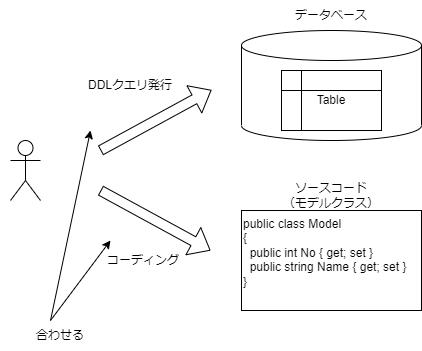
DapperはEF Coreとは異なり、データベースへのデータ投入はDML/DDLクエリを実行する必要があります。
また、モデルクラスを自動生成できないため、テーブル構造と突き合わせながらモデルクラスを作ります。
Dapperを使う
EF Coreのチュートリアルを基に、ASP.NET CoreでDapperを使ってみました。
ソースコードはGitHubリポジトリにあります。
環境
- Windows 10 64bit
- Visual Studio Community 2022
- C#
- NET 7.0
- ASP.NET Core Webアプリ(Model-View-Controller)
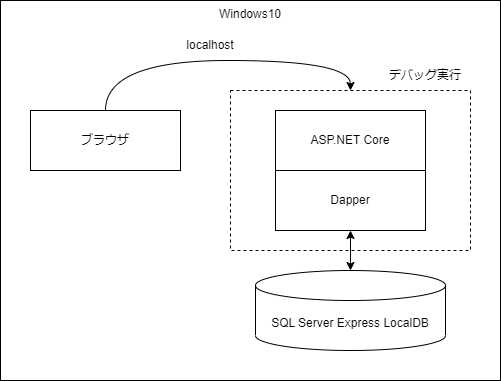
- SQL Server Express Edition(localDB)
構成
プロジェクト作成
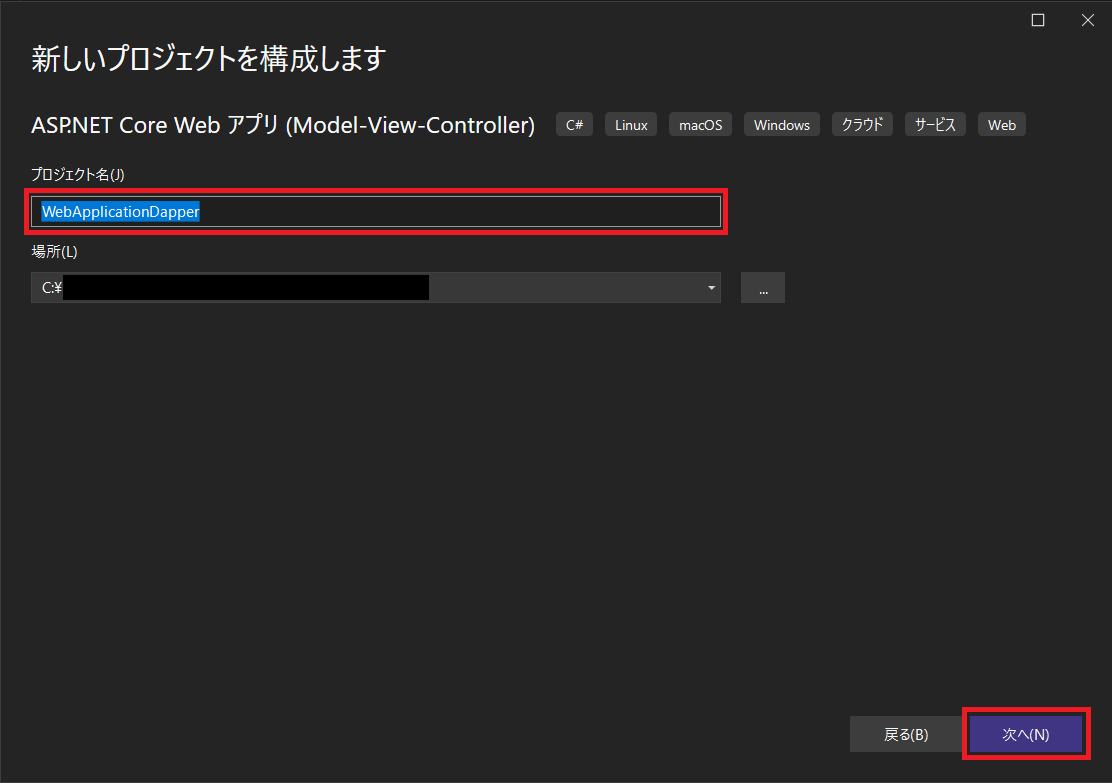
プロジェクトテンプレートは「ASP.NET Core Webアプリ(Model-View-Controller)」を選択します。
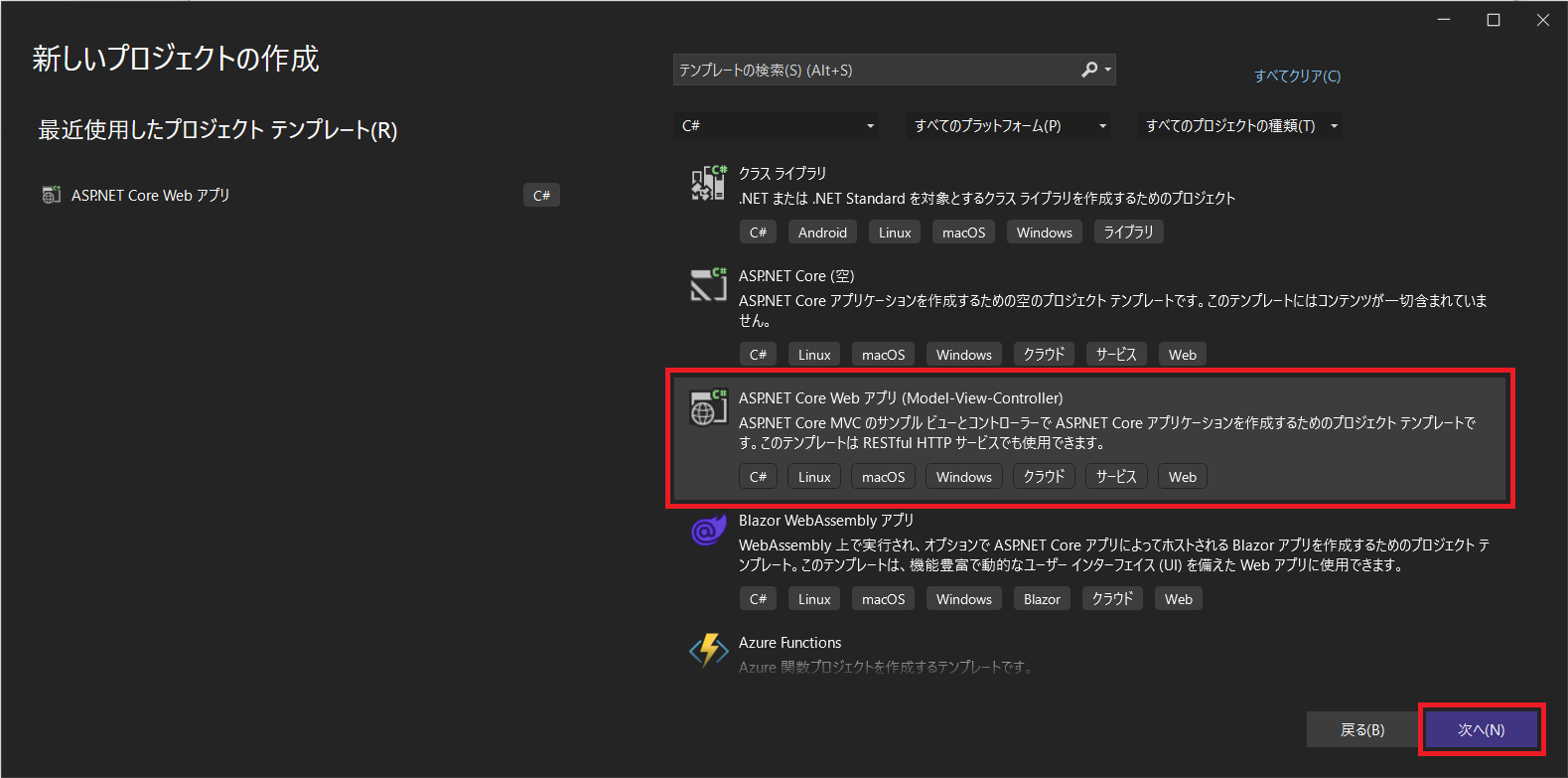
プロジェクト名はWebApplicationDapperにします。
Webサイトのスタイル設定
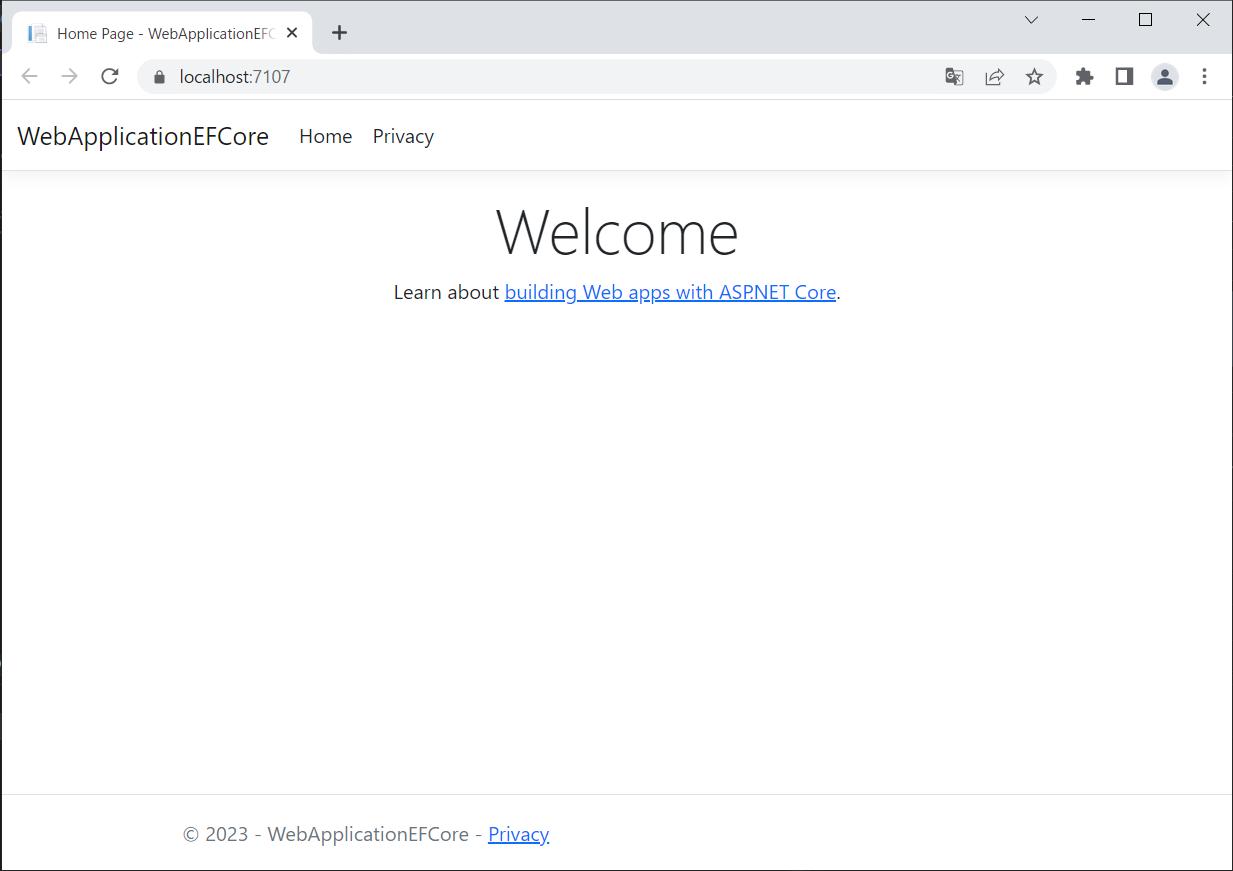
サイトのホームページ、レイアウト、メニューを設定します。
スタイル変更前(デフォルト)
スタイル変更後
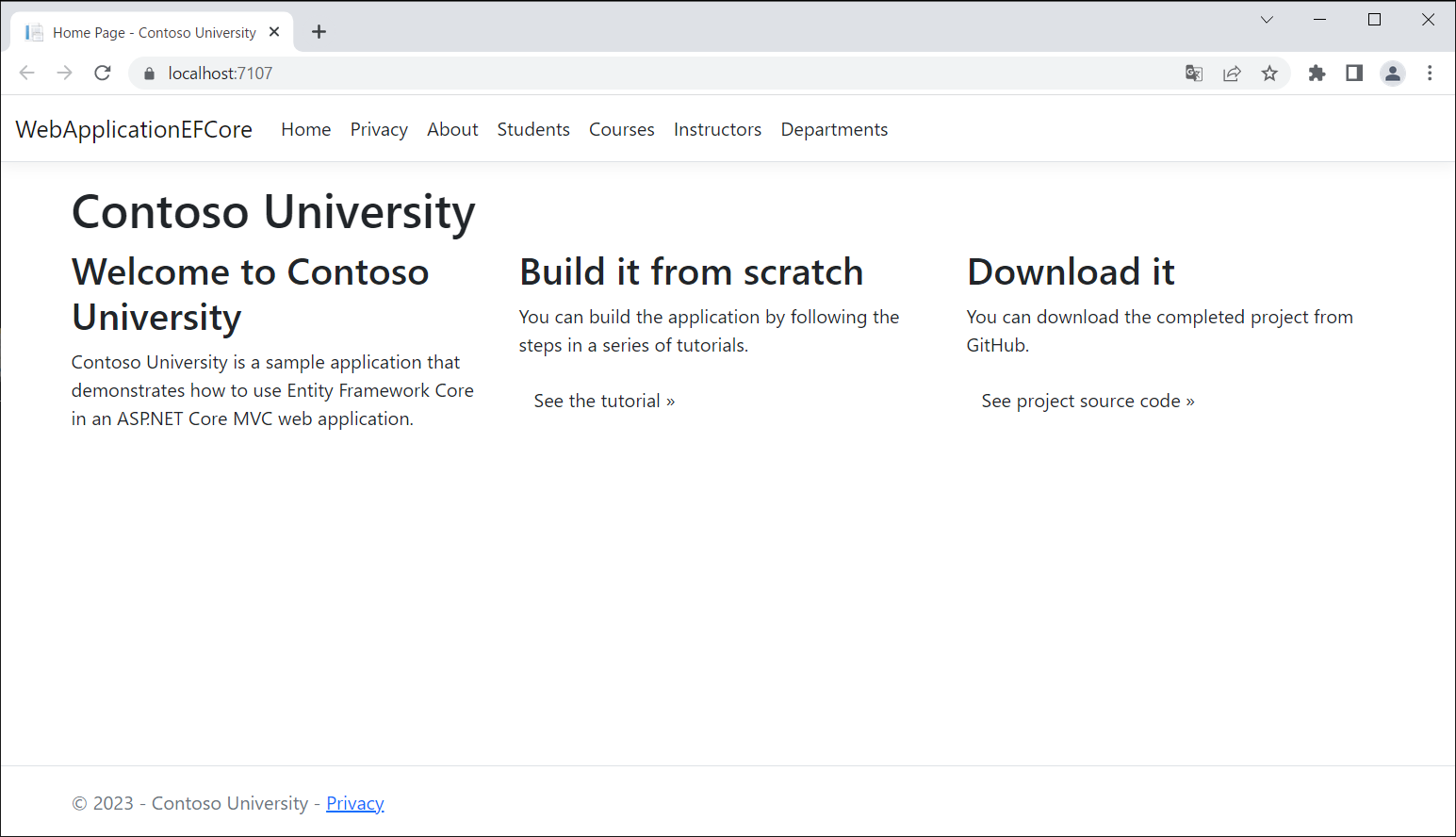
サイトのホームページを設定します。
Views\Home\Index.cshtmlを下記の内容に置き換えます。
@{
ViewData["Title"] = "Home Page";
}
<div class="jumbotron">
<h1>Contoso University</h1>
</div>
<div class="row">
<div class="col-md-4">
<h2>Welcome to Contoso University</h2>
<p>
Contoso University is a sample application that
demonstrates how to use Entity Framework Core in an
ASP.NET Core MVC web application.
</p>
</div>
<div class="col-md-4">
<h2>Build it from scratch</h2>
<p>You can build the application by following the steps in a series of tutorials.</p>
<p><a class="btn btn-default" href="https://docs.asp.net/en/latest/data/ef-mvc/intro.html">See the tutorial »</a></p>
</div>
<div class="col-md-4">
<h2>Download it</h2>
<p>You can download the completed project from GitHub.</p>
<p><a class="btn btn-default" href="https://github.com/dotnet/AspNetCore.Docs/tree/main/aspnetcore/data/ef-mvc/intro/samples/5cu-final">See project source code »</a></p>
</div>
</div>
サイトのヘッダーを設定します。
Views\Shared\_Layout.cshtmlを下記のように修正します。
<!DOCTYPE html>
<html lang="en">
<head>
<meta charset="utf-8" />
<meta name="viewport" content="width=device-width, initial-scale=1.0" />
- <title>@ViewData["Title"] - WebApplicationDapper</title>
+ <title>@ViewData["Title"] - Contoso University</title>
<link rel="stylesheet" href="~/lib/bootstrap/dist/css/bootstrap.min.css" />
<link rel="stylesheet" href="~/css/site.css" asp-append-version="true" />
<link rel="stylesheet" href="~/WebApplicationDapper.styles.css" asp-append-version="true" />
</head>
<body>
<header>
<nav class="navbar navbar-expand-sm navbar-toggleable-sm navbar-light bg-white border-bottom box-shadow mb-3">
<div class="container-fluid">
<a class="navbar-brand" asp-area="" asp-controller="Home" asp-action="Index">WebApplicationDapper</a>
<button class="navbar-toggler" type="button" data-bs-toggle="collapse" data-bs-target=".navbar-collapse" aria-controls="navbarSupportedContent"
aria-expanded="false" aria-label="Toggle navigation">
<span class="navbar-toggler-icon"></span>
</button>
<div class="navbar-collapse collapse d-sm-inline-flex justify-content-between">
<ul class="navbar-nav flex-grow-1">
<li class="nav-item">
<a class="nav-link text-dark" asp-area="" asp-controller="Home" asp-action="Index">Home</a>
</li>
<li class="nav-item">
<a class="nav-link text-dark" asp-area="" asp-controller="Home" asp-action="Privacy">Privacy</a>
</li>
+ <li class="nav-item">
+ <a class="nav-link text-dark" asp-area="" asp-controller="Home" asp-action="About">About</a>
+ </li>
+ <li class="nav-item">
+ <a class="nav-link text-dark" asp-area="" asp-controller="Students" asp-action="Index">Students</a>
+ </li>
+ <li class="nav-item">
+ <a class="nav-link text-dark" asp-area="" asp-controller="Courses" asp-action="Index">Courses</a>
+ </li>
+ <li class="nav-item">
+ <a class="nav-link text-dark" asp-area="" asp-controller="Instructors" asp-action="Index">Instructors</a>
+ </li>
+ <li class="nav-item">
+ <a class="nav-link text-dark" asp-area="" asp-controller="Departments" asp-action="Index">Departments</a>
+ </li>
</ul>
</div>
</div>
</nav>
</header>
<div class="container">
<main role="main" class="pb-3">
@RenderBody()
</main>
</div>
<footer class="border-top footer text-muted">
<div class="container">
- © 2023 - WebApplicationDapper - <a asp-area="" asp-controller="Home" asp-action="Privacy">Privacy</a>
+ © 2023 - Contoso University - <a asp-area="" asp-controller="Home" asp-action="Privacy">Privacy</a>
</div>
</footer>
<script src="~/lib/jquery/dist/jquery.min.js"></script>
<script src="~/lib/bootstrap/dist/js/bootstrap.bundle.min.js"></script>
<script src="~/js/site.js" asp-append-version="true"></script>
@await RenderSectionAsync("Scripts", required: false)
</body>
</html>
Dapperのインストール
NuGetで下記のパッケージをインストールします。
| パッケージ | 説明 |
|---|---|
| Dapper | O/Rマッパー |
| Microsoft.Data.SqlClient | SQL Serverのプロパイダ(モダン) |
| System.Data.SqlClient | SQL Serverのプロパイダ(レガシー) |
Microsoft.Data.SqlClientとSystem.Data.SqlClientの違いについてはMicrosoftのサイトから引用
Microsoft.Data.SqlClient 名前空間は、実質的には System.Data.SqlClient 名前空間の新しいバージョンです。
モデルクラスの作成
Modelsフォルダにエンティティのクラスを作成します。
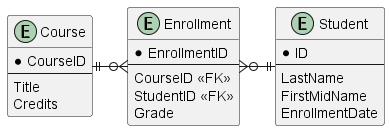
Models
 ├─ Course.cs         // 新規に追加する
 ├─ Enrollment.cs     // 新規に追加する
 ├─ ErrorViewModel.cs // デフォルトからある
 └─ Student.cs        // 新規に追加する
Models\Student.cs
namespace WebApplicationDapper.Models
{
    public class Student
    {
        public int ID { get; set; }
        public string LastName { get; set; }
        public string FirstMidName { get; set; }
        public DateTime EnrollmentDate { get; set; }
    }
}
Models\Enrollment.cs
namespace WebApplicationDapper.Models
{
    public enum Grade
    {
        A, B, C, D, F
    }

    public class Enrollment
    {
        public int EnrollmentID { get; set; }
        public int CourseID { get; set; }
        public int StudentID { get; set; }
        public Grade? Grade { get; set; }
    }
}
Models\Course.cs
namespace WebApplicationDapper.Models
{
    public class Course
    {
        public int CourseID { get; set; }
        public string Title { get; set; }
        public int Credits { get; set; }
    }
}
スキャフォールディングでコントローラークラス、ビューファイルを自動生成
ASP.NET Coreのスキャフォールディングで、DBのStudentテーブルを、画面操作でCRUDできるようにコントローラークラス、ビューファイルを自動生成します。
/
├─ Controllers
|  └─ StudentsController.cs // 追加
└─ Views
   └─ Students  // 追加
      ├─ Create.cshtml  // 追加
      ├─ Delete.cshtml  // 追加
      ├─ Details.cshtml // 追加
      ├─ Edit.cshtml    // 追加
      └─ Index.cshtml   // 追加
コントローラークラス
StudentテーブルのCRUD用のコントローラークラスControllers\StudentsController.csを追加します。
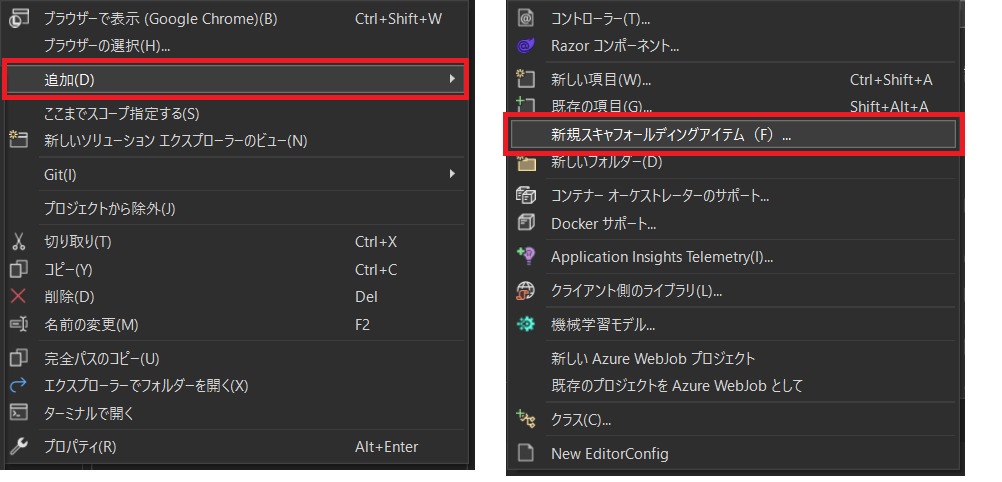
Visual StudioのソリューションエクスプローラーでControllersフォルダを右クリックして、
「追加」>「新規スキャフォールディングアイテムの追加」を選択します。
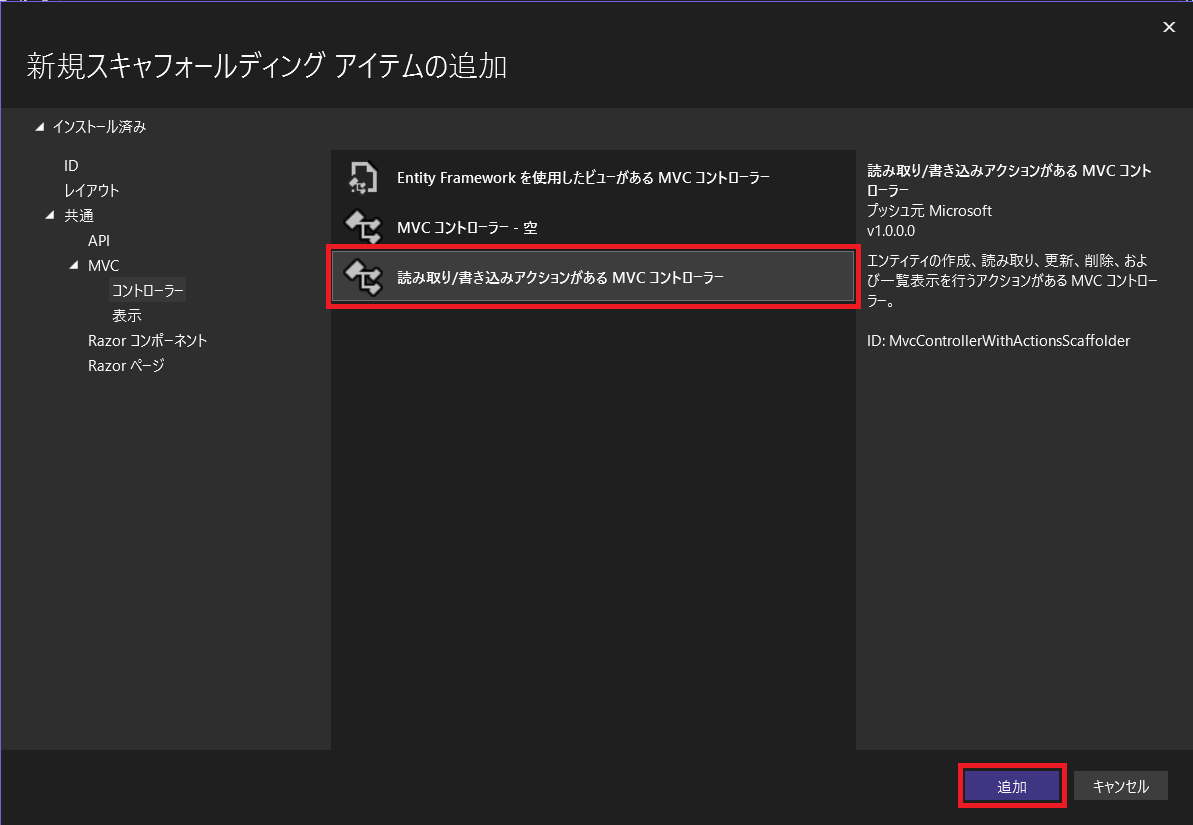
「読み取り/書き込みアクションがあるMVCコントローラー」を選択します。
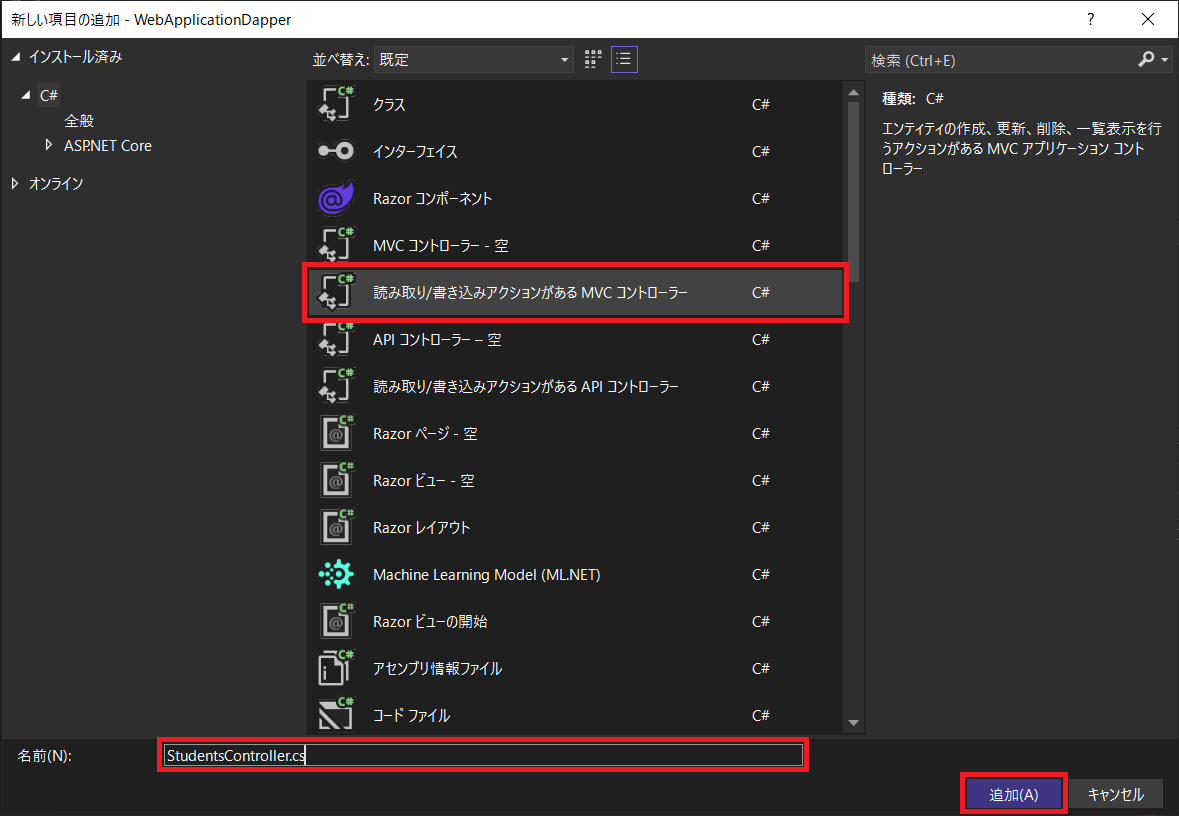
ファイル名を、StudentController.csにします。
コメントのURLを修正しておきます。後でDB操作の処理を追加します。
using Microsoft.AspNetCore.Http;
using Microsoft.AspNetCore.Mvc;

namespace WebApplicationDapper.Controllers
{
    public class StudentsController : Controller
    {
-        // GET: StudentsController
+        // GET: Students
        public ActionResult Index()
        {
            return View();
        }

-        // GET: StudentsController/Details/5
+        // GET: Students/Details/5
        public ActionResult Details(int id)
        {
            return View();
        }

        ~~~ 省略 ~~~
    }
}
ビューファイル
StudentテーブルのCRUD用のビューファイルViews\Students\*.cshtmlを追加します。
Viewsフォルダの下にStudentsフォルダを作成します。Visual StudioのソリューションエクスプローラーでStudentsフォルダを右クリックして、
「追加」>「新規スキャフォールディングアイテム」を選択します。
「Razorビュー」を選択します。
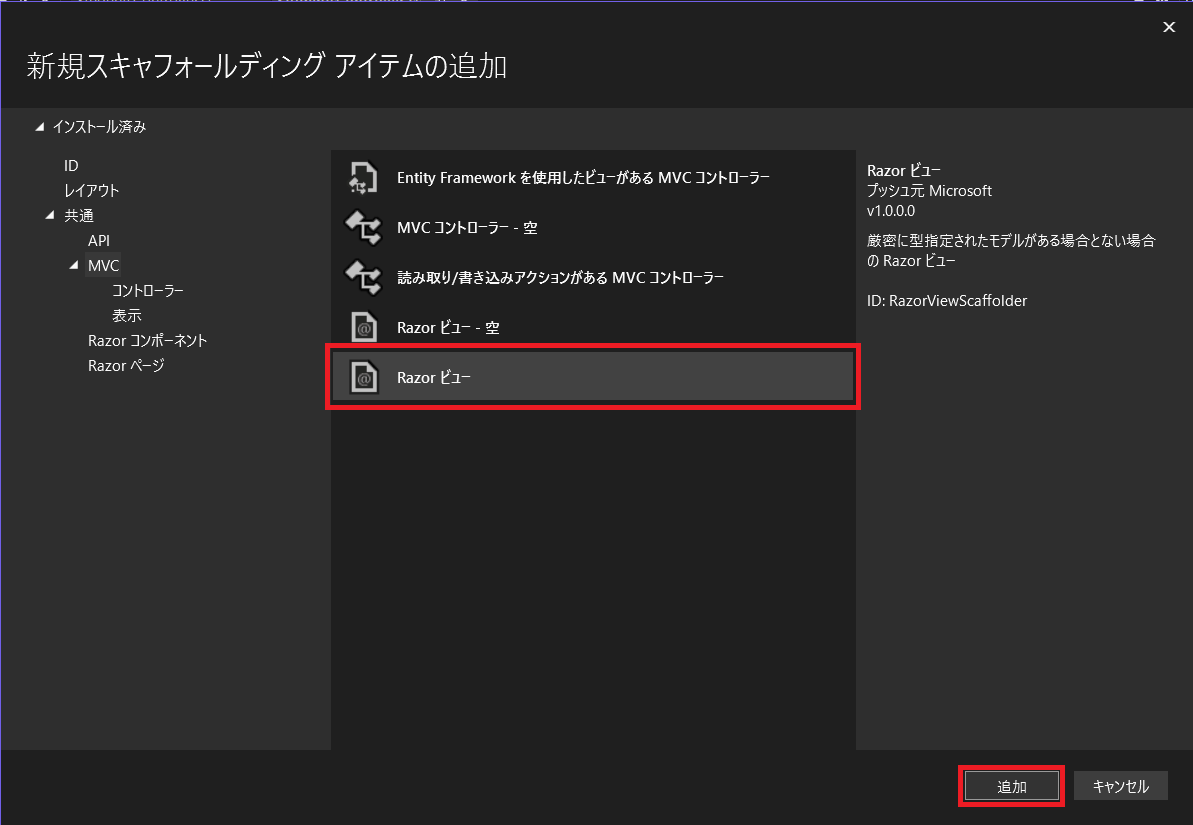
テンプレート毎にビューファイルを作成します。
| ビュー名(.cshtml) | テンプレート | モデルクラス |
|---|---|---|
| Create | Create | Student |
| Delete | Delete | Student |
| Details | Details | Student |
| Edit | Edit | Student |
| Index | List | Student |
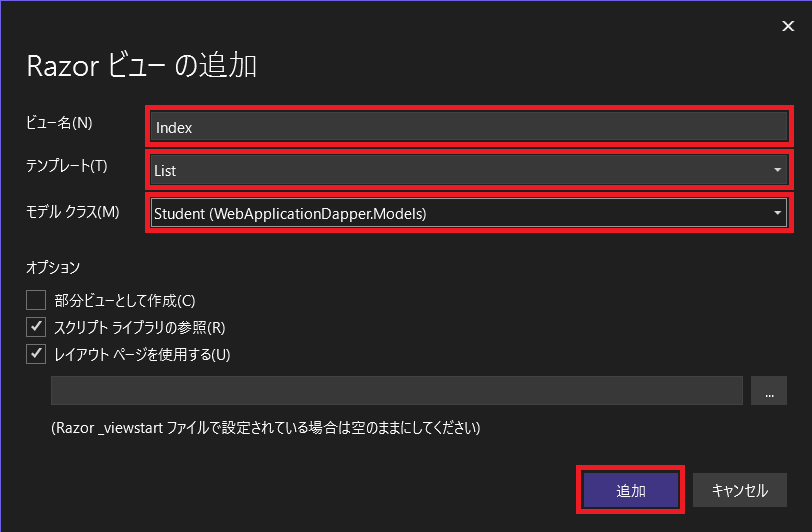
該当するレコードを編集できるように、作成されたビューファイル内でコメントアウトされている箇所に主キーを指定します。
Details.cshtml
@model WebApplicationDapper.Models.Student

@{
    ViewData["Title"] = "Details";
}

<h1>Details</h1>

<div>
    <h4>Student</h4>
    <hr />
    <dl class="row">
        <dt class = "col-sm-2">
            @Html.DisplayNameFor(model => model.ID)
        </dt>
        <dd class = "col-sm-10">
            @Html.DisplayFor(model => model.ID)
        </dd>
        <dt class = "col-sm-2">
            @Html.DisplayNameFor(model => model.LastName)
        </dt>
        <dd class = "col-sm-10">
            @Html.DisplayFor(model => model.LastName)
        </dd>
        <dt class = "col-sm-2">
            @Html.DisplayNameFor(model => model.FirstMidName)
        </dt>
        <dd class = "col-sm-10">
            @Html.DisplayFor(model => model.FirstMidName)
        </dd>
        <dt class = "col-sm-2">
            @Html.DisplayNameFor(model => model.EnrollmentDate)
        </dt>
        <dd class = "col-sm-10">
            @Html.DisplayFor(model => model.EnrollmentDate)
        </dd>
    </dl>
</div>
<div>
-   @Html.ActionLink("Edit", "Edit", new { /* id = Model.PrimaryKey */ }) |
+   @Html.ActionLink("Edit", "Edit", new { id = Model.ID }) |
    <a asp-action="Index">Back to List</a>
</div>
Index.cshtml
@model IEnumerable<WebApplicationDapper.Models.Student>

@{
    ViewData["Title"] = "Index";
}

<h1>Index</h1>

<p>
    <a asp-action="Create">Create New</a>
</p>
<table class="table">
    <thead>
        <tr>
            <th>
                @Html.DisplayNameFor(model => model.ID)
            </th>
            <th>
                @Html.DisplayNameFor(model => model.LastName)
            </th>
            <th>
                @Html.DisplayNameFor(model => model.FirstMidName)
            </th>
            <th>
                @Html.DisplayNameFor(model => model.EnrollmentDate)
            </th>
            <th></th>
        </tr>
    </thead>
    <tbody>
@foreach (var item in Model) {
        <tr>
            <td>
                @Html.DisplayFor(modelItem => item.ID)
            </td>
            <td>
                @Html.DisplayFor(modelItem => item.LastName)
            </td>
            <td>
                @Html.DisplayFor(modelItem => item.FirstMidName)
            </td>
            <td>
                @Html.DisplayFor(modelItem => item.EnrollmentDate)
            </td>
            <td>
-               @Html.ActionLink("Edit", "Edit", new { /* id=item.PrimaryKey */ }) |
+               @Html.ActionLink("Edit", "Edit", new { id=item.ID }) |
-               @Html.ActionLink("Details", "Details", new { /* id=item.PrimaryKey */ }) |
+               @Html.ActionLink("Details", "Details", new { id=item.ID }) |
-               @Html.ActionLink("Delete", "Delete", new { /* id=item.PrimaryKey */ })
+               @Html.ActionLink("Delete", "Delete", new { id=item.ID })
            </td>
        </tr>
}
    </tbody>
</table>
データベース設定
SQL Serverにテーブルを作成し、データを投入します。
データベース作成
Visual Studioの「SQL Serverオブジェクトエクスプローラー」で(localdb)\MSSQLLocalDBのデータベースファルダを右クリックして、「新しいデータベースの追加」を選択します。
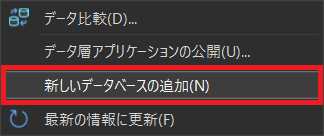
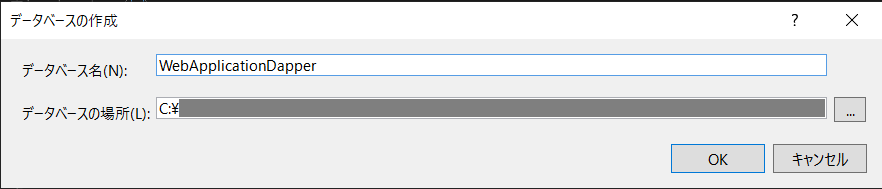
データベース名はWebApplicationDapperにします。
テーブル作成+データ投入
Visual Studioの「SQL Serverオブジェクトエクスプローラー」で先ほど作成したデータベースWebApplicationDapperを右クリックして「新しいクエリ」を選択します。
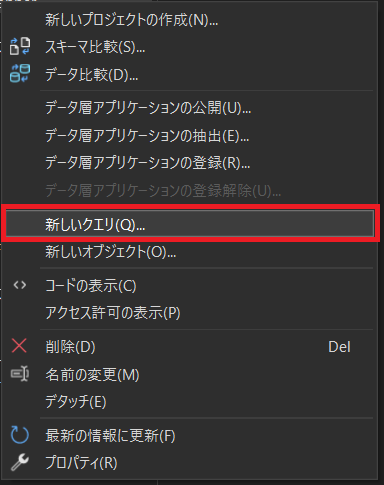
下記をコピぺして、実行(Ctrl+Shift+E)します。
- テーブル作成
CREATE TABLE [dbo].[Student] (
    [ID]             INT            IDENTITY (1, 1) NOT NULL,
    [LastName]       NVARCHAR (MAX) NOT NULL,
    [FirstMidName]   NVARCHAR (MAX) NOT NULL,
    [EnrollmentDate] DATETIME2 (7)  NOT NULL,
    CONSTRAINT [PK_Student] PRIMARY KEY CLUSTERED ([ID] ASC)
);

CREATE TABLE [dbo].[Enrollment] (
    [EnrollmentID] INT IDENTITY (1, 1) NOT NULL,
    [CourseID]     INT NOT NULL,
    [StudentID]    INT NOT NULL,
    [Grade]        INT NULL,
    CONSTRAINT [PK_Enrollment] PRIMARY KEY CLUSTERED ([EnrollmentID] ASC)
);

CREATE TABLE [dbo].[Course] (
    [CourseID] INT            IDENTITY (1, 1) NOT NULL,
    [Title]    NVARCHAR (MAX) NOT NULL,
    [Credits]  INT            NOT NULL,
    CONSTRAINT [PK_Course] PRIMARY KEY CLUSTERED ([CourseID] ASC)
);
- データ投入
INSERT INTO Student (FirstMidName, LastName, EnrollmentDate) VALUES ('Carson','Alexander','2005-09-01');
INSERT INTO Student (FirstMidName, LastName, EnrollmentDate) VALUES ('Meredith','Alonso','2002-09-01');
INSERT INTO Student (FirstMidName, LastName, EnrollmentDate) VALUES ('Arturo','Anand','2003-09-01');
INSERT INTO Student (FirstMidName, LastName, EnrollmentDate) VALUES ('Gytis','Barzdukas','2002-09-01');
INSERT INTO Student (FirstMidName, LastName, EnrollmentDate) VALUES ('Yan','Li','2002-09-01');
INSERT INTO Student (FirstMidName, LastName, EnrollmentDate) VALUES ('Peggy','Justice','2001-09-01');
INSERT INTO Student (FirstMidName, LastName, EnrollmentDate) VALUES ('Laura','Norman','2003-09-01');
INSERT INTO Student (FirstMidName, LastName, EnrollmentDate) VALUES ('Nino','Olivetto','2005-09-01');

INSERT INTO Enrollment (StudentID, CourseID, Grade) VALUES (1, 1050, 0);
INSERT INTO Enrollment (StudentID, CourseID, Grade) VALUES (1, 4022, 2);
INSERT INTO Enrollment (StudentID, CourseID, Grade) VALUES (1, 4041, 1);
INSERT INTO Enrollment (StudentID, CourseID, Grade) VALUES (2, 1045, 1);
INSERT INTO Enrollment (StudentID, CourseID, Grade) VALUES (2, 3141, 4);
INSERT INTO Enrollment (StudentID, CourseID, Grade) VALUES (2, 2021, 4);
INSERT INTO Enrollment (StudentID, CourseID, Grade) VALUES (3, 1050, null);
INSERT INTO Enrollment (StudentID, CourseID, Grade) VALUES (4, 1050, null);
INSERT INTO Enrollment (StudentID, CourseID, Grade) VALUES (4, 4022, 4);
INSERT INTO Enrollment (StudentID, CourseID, Grade) VALUES (5, 4041, 2);
INSERT INTO Enrollment (StudentID, CourseID, Grade) VALUES (6, 1045, null);
INSERT INTO Enrollment (StudentID, CourseID, Grade) VALUES (7, 3141, 0);

INSERT INTO Course (Title, Credits) VALUES ('Chemistry',3);
INSERT INTO Course (Title, Credits) VALUES ('Microeconomics',3);
INSERT INTO Course (Title, Credits) VALUES ('Macroeconomics',3);
INSERT INTO Course (Title, Credits) VALUES ('Calculus',4);
INSERT INTO Course (Title, Credits) VALUES ('Trigonometry',4);
INSERT INTO Course (Title, Credits) VALUES ('Composition',3);
INSERT INTO Course (Title, Credits) VALUES ('Literature',4);
設定ファイル
データベース接続情報
appsettings.jsonにデータベースの接続情報を追記します。
{
  "Logging": {
    "LogLevel": {
      "Default": "Information",
      "Microsoft.AspNetCore": "Warning"
    }
  },
  "AllowedHosts": "*",
+ "ConnectionStrings": {
+   "DbContext": "Server=(localdb)\\mssqllocaldb;Database=WebApplicationDapper;Trusted_Connection=True;MultipleActiveResultSets=true"
  }
}
設定ファイルの参照
コントローラークラスからデータベースの接続情報を参照できるように、StudentsController.csにコンストラクタStudentsController()を追加します。
namespace WebApplicationDapper.Controllers
{
    public class StudentsController : Controller
    {
+       private readonly string _connectionString;

+       public StudentsController(IConfiguration configuration)
+       {
+           _connectionString = configuration.GetConnectionString("DbContext");
+       }

        ~~~ 省略 ~~~
    }
}
DB操作
Dapperを使ってコントローラークラスでDBを操作します。
| DMLクエリ | Dapperのメソッド |
|---|---|
| SELECT(全件) | QueryAsync() |
| SELECT(WHEREで1件) | QueryFirstOrDefault() |
| INSERT | ExecuteAsync() |
| UPDATE | QueryAsync() |
| DELETE | QueryAsync() |
using Dapper;
using Microsoft.AspNetCore.Mvc;
using Microsoft.Data.SqlClient;
using WebApplicationDapper.Models;

namespace WebApplicationDapper.Controllers
{
    public class StudentsController : Controller
    {
        private readonly string _connectionString;

        public StudentsController(IConfiguration configuration)
        {
            _connectionString = configuration.GetConnectionString("DbContext");
        }

        // GET: Students
        public async Task<ActionResult> Index()
        {
            using var connection = new SqlConnection(_connectionString);

            var sql = "SELECT * FROM Student";

            var students = await connection.QueryAsync<Student>(sql);

            return View(students);
        }

        // GET: Students/Details/5
        public ActionResult Details(int id)
        {
            using var connection = new SqlConnection(_connectionString);

            var sql = "SELECT * FROM Student WHERE ID = @Id";

            var student = connection.QueryFirstOrDefault<Student>(sql, new { Id = id });

            return View(student);
        }

        // GET: Students/Create
        public ActionResult Create()
        {
            return View();
        }

        // POST: Students/Create
        [HttpPost]
        [ValidateAntiForgeryToken]
        public async Task<ActionResult> Create(IFormCollection collection)
        {
            try
            {
                using var connection = new SqlConnection(_connectionString);

                var sql = "INSERT INTO Student (FirstMidName, LastName, EnrollmentDate) VALUES (@FirstMidName, @LastName, @EnrollmentDate)";

                if (!int.TryParse(collection["ID"].ToString(), out var id))
                {
                    return View();
                }
                if (!DateTime.TryParse(collection["EnrollmentDate"].ToString(), out var enrollmentDate))
                {
                    return View();
                }

                var student = new Student()
                {
                    ID = id,
                    LastName = collection["LastName"].ToString(),
                    FirstMidName = collection["FirstMidName"].ToString(),
                    EnrollmentDate = enrollmentDate
                };

                var rowsAffected = await connection.ExecuteAsync(sql, student);

                return RedirectToAction(nameof(Index));
            }
            catch
            {
                return View();
            }
        }

        // GET: Students/Edit/5
        public ActionResult Edit(int id)
        {
            using var connection = new SqlConnection(_connectionString);

            var sql = "SELECT * FROM Student WHERE ID = @Id";

            var student = connection.QueryFirstOrDefault<Student>(sql, new { Id = id });

            return View(student);
        }

        // POST: Students/Edit/5
        [HttpPost]
        [ValidateAntiForgeryToken]
        public async Task<ActionResult> Edit(int id, IFormCollection collection)
        {
            try
            {
                using var connection = new SqlConnection(_connectionString);

                var sql = "UPDATE Student SET FirstMidName = @FirstMidName, LastName = @LastName, EnrollmentDate = @EnrollmentDate WHERE ID = @Id";

                if (!DateTime.TryParse(collection["EnrollmentDate"].ToString(), out var enrollmentDate))
                {
                    return View();
                }

                var student = new Student()
                {
                    ID = id,
                    LastName = collection["LastName"].ToString(),
                    FirstMidName = collection["FirstMidName"].ToString(),
                    EnrollmentDate = enrollmentDate
                };

                var rowsAffected = await connection.ExecuteAsync(sql, student);

                return RedirectToAction(nameof(Index));
            }
            catch
            {
                return View();
            }
        }

        // GET: Students/Delete/5
        public ActionResult Delete(int id)
        {
            using var connection = new SqlConnection(_connectionString);

            var sql = "SELECT * FROM Student WHERE ID = @Id";

            var student = connection.QueryFirstOrDefault<Student>(sql, new { Id = id });

            return View(student);
        }

        // POST: Students/Delete/5
        [HttpPost]
        [ValidateAntiForgeryToken]
        public async Task<ActionResult> Delete(int id, IFormCollection collection)
        {
            try
            {
                using var connection = new SqlConnection(_connectionString);

                var sql = "DELETE FROM Student WHERE ID = @Id";

                var student = new Student()
                {
                    ID = id,
                };

                var rowsAffected = await connection.ExecuteAsync(sql, student);

                return RedirectToAction(nameof(Index));
            }
            catch
            {
                return View();
            }
        }
    }
}
Webアプリの実行
新たにレコードを追加します。
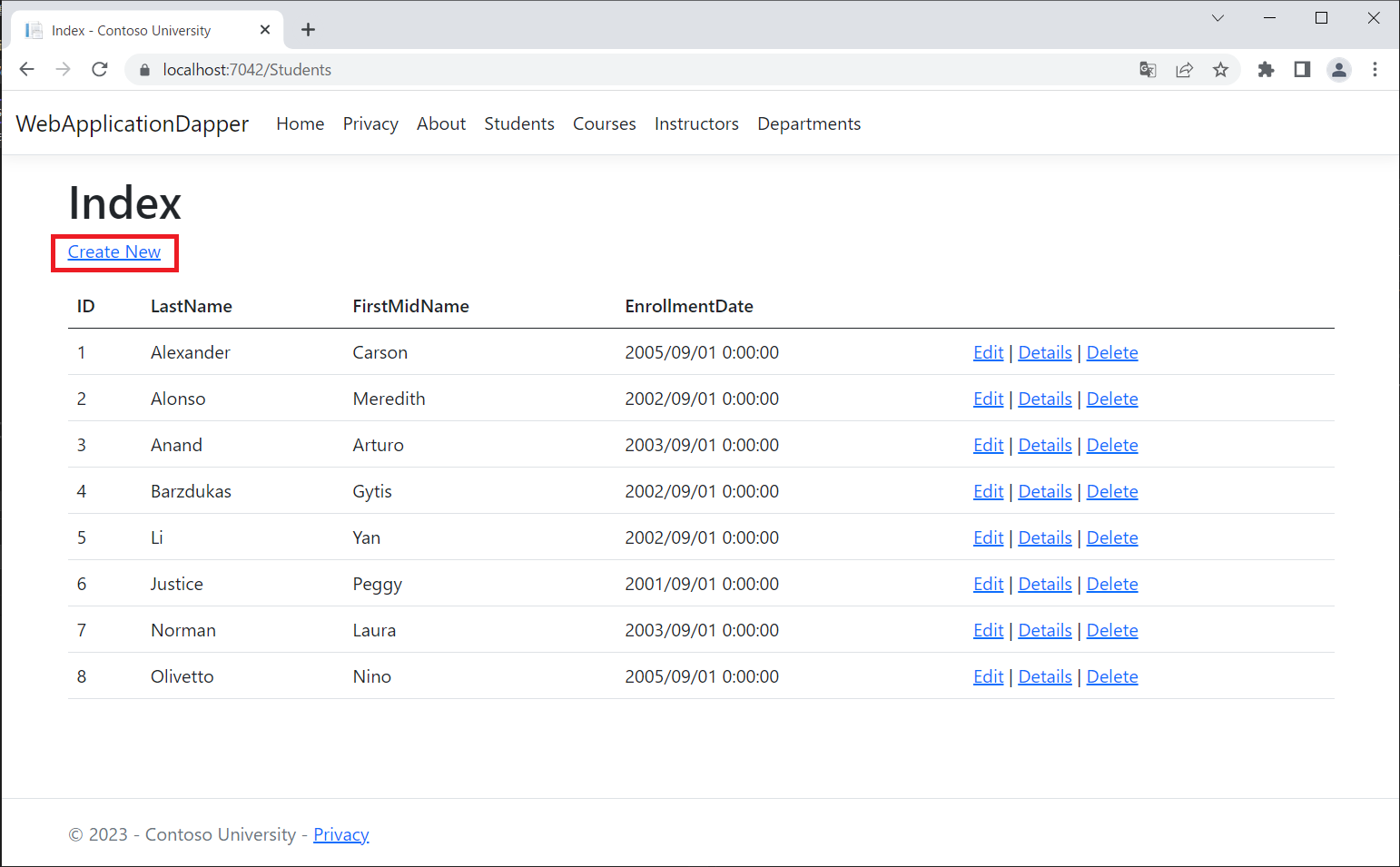
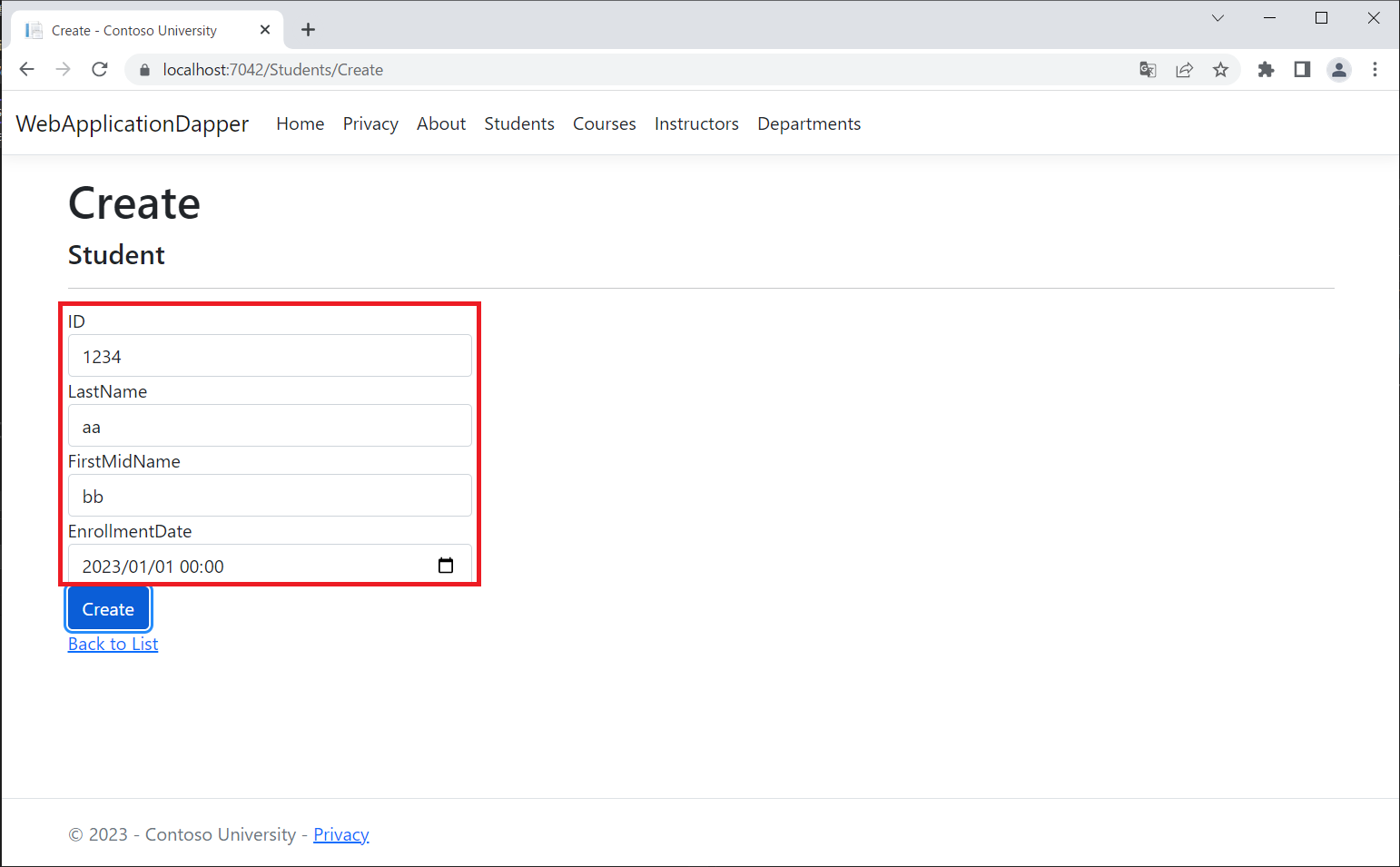
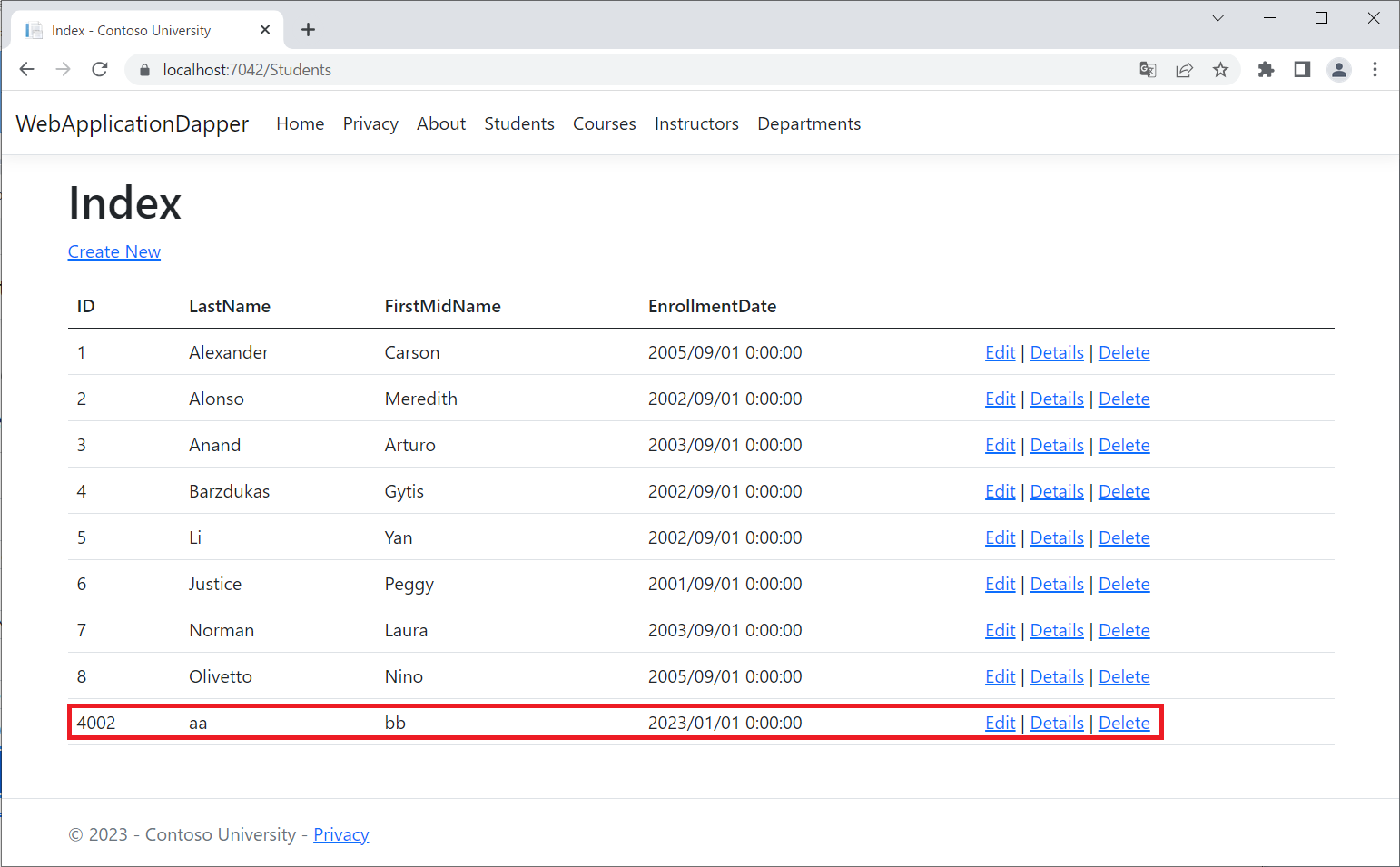
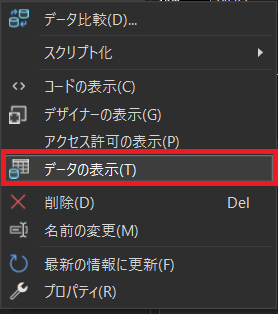
「SQL Serverオブジェクトエクスプローラー」でdbo.Studentを右クリックして「データの表示」を選択します。
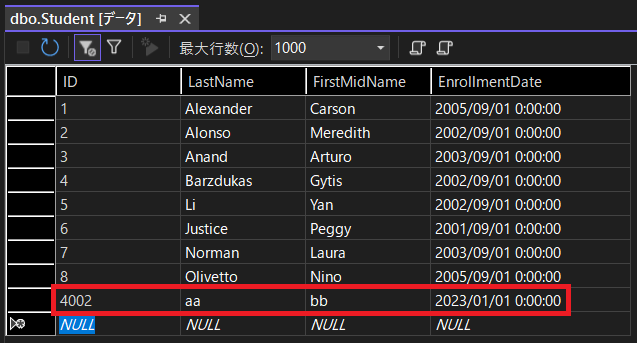
新たにレコードが追加されたことの確認ができました。
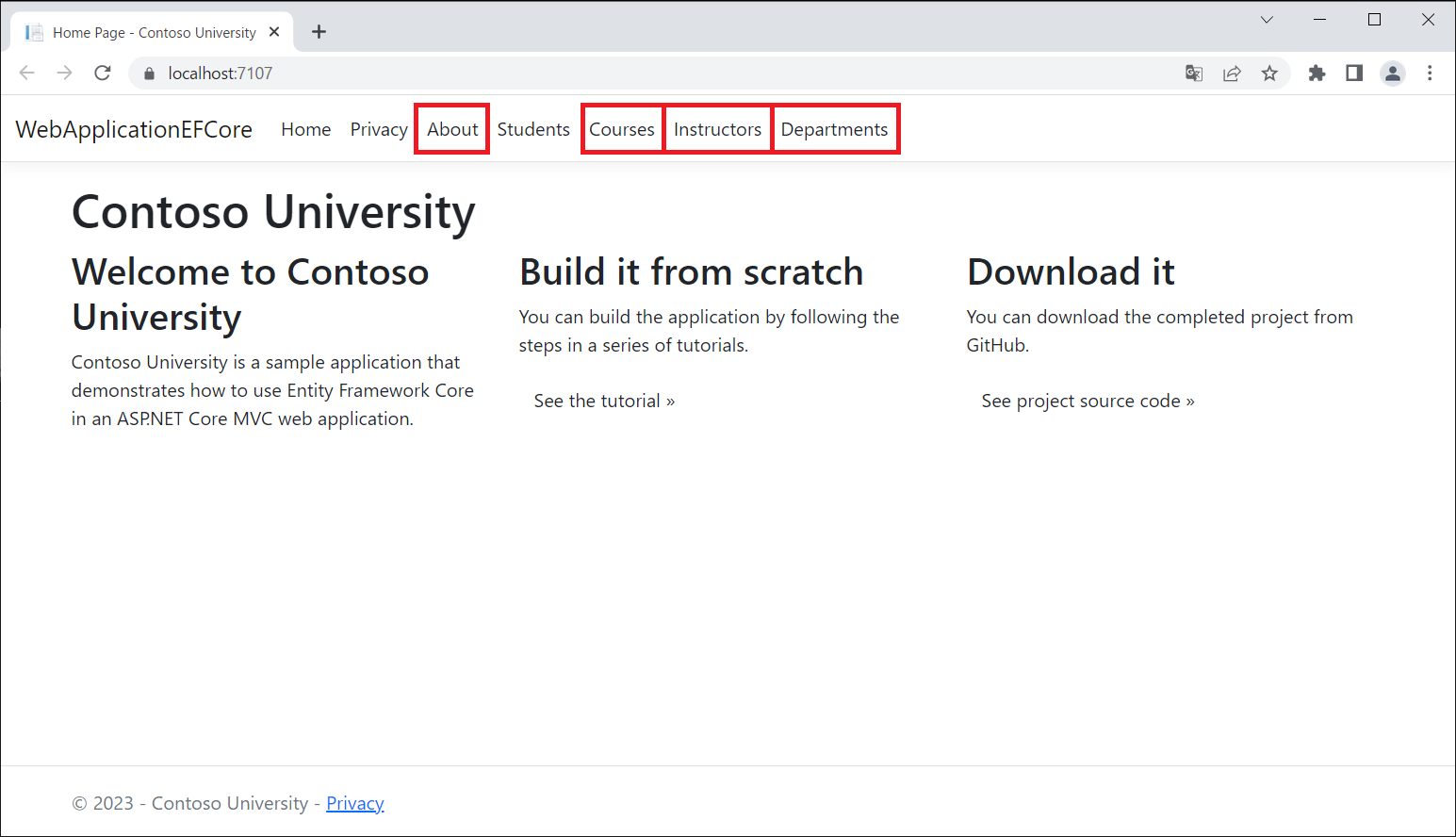
ヘッダーの「About」「Courses」「Instructors」「Departments」は、今回は実装しません。クリックすると404エラーとなります。
さいごに
EF CoreとDapperを比較してみました。
| 項目 | EF Core | Dapper |
|---|---|---|
| DB操作 | LINQクエリ | 生SQLクエリ |
| Code-First | 〇 | ✖ |
| Database-First | 〇 | 〇 |
| 速度 | 〇 | ◎ |
Code-Firstを採用するのであればEFCoreとなりますが、
Dapper Tutorialにあるように、お好みで使い分けるのが良いように思います。
However, EF Core is relatively very fast as well. The question about which ORM is the best for you should be more about if you want to write most of your SQL query (Dapper) or if you prefer to write LINQ and have EF Core write the SQL query for you.
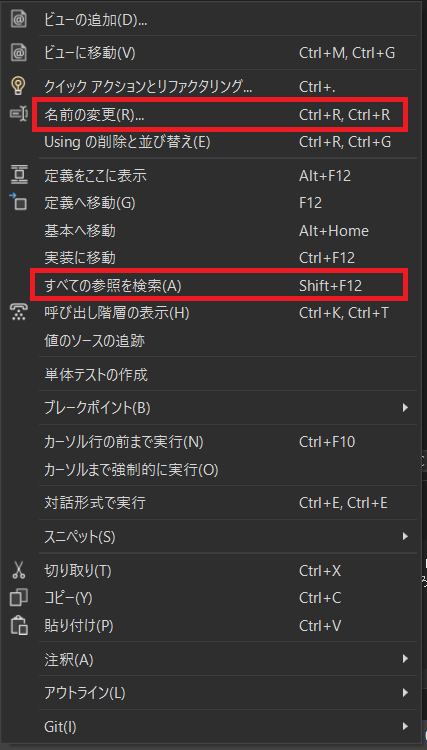
DapperはSQLクエリをstringで定義する場合がほとんどかと思いますが、stringだとVisual Studioの「名前の変更」や「すべての参照を検索」が使用できないため、リファクタリングや解析に(少し)苦労するように感じました。